Latest UXP Plugin:
If you don't see the plugin in Photoshop, be sure you have really installed the Plugin. We know it may sound silly but it can happen. Once installed, the Muse Plugin will be in the main Photoshop upper menu called Plugins.
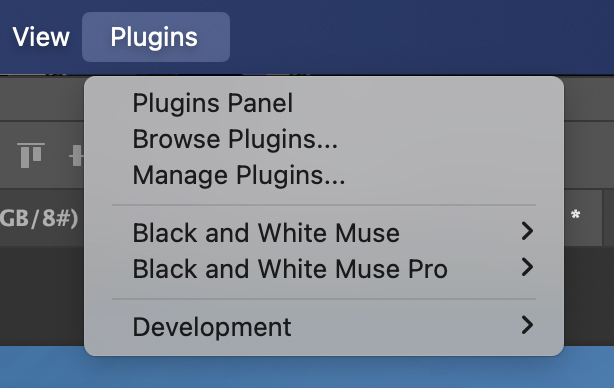
In order to install the UXP plugin (Latest version), locate the .CCX file in your downloaded files (it's usually inside the plugins zip file) and double click on it. Once done, the file will be installed via Creative Cloud in few seconds.
Be sure you own the original version of Photoshop since some non official versions can be buggy and don't display some menus. We advice to use always only original software.
Oldest CEO panel:
If you are trying to install the old CEP version of the plugin, check this part of the article. Keep in mind that if you have an Apple computer with M chips, you should install the UXP version of the Plugin (Latest version).
Windows users
If you are on Windows machine, you will find the extension (Panel) inside the main Photoshop Menu->Window->Extensions.
Mac Intel users
You will find the extension (Panel) inside the main Photoshop Menu->Window->Extensions.
M1 and M2 Mac users
If you are on Mac machine powered my M1 or M2 chip you need to run Photoshop in Rosetta mode. Rosetta mode is nothing you need to install, it's already an option inside your native Photoshop. You need just to tell the system to run Photoshop in Rosetta mode.
To do so just go into the Applications Folder inside your Finder and than click on the Photoshop folder. Inside the Photoshop folder right click on the Photoshop App Icon and click on "Get Info" menu. Now just Check "Open using Rosetta" and restart Photoshop.
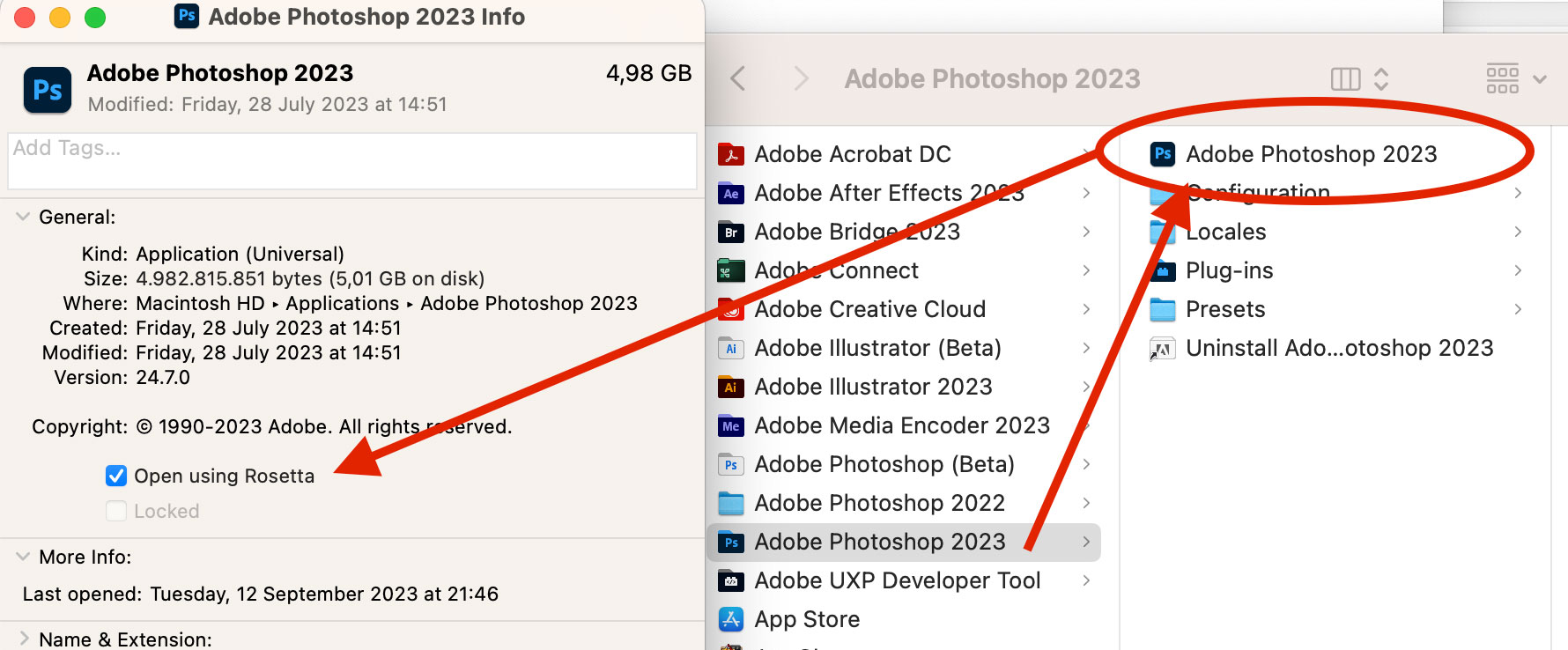
You can also check this video which explains the process:
Was this article helpful?
That’s Great!
Thank you for your feedback
Sorry! We couldn't be helpful
Thank you for your feedback
Feedback sent
We appreciate your effort and will try to fix the article